A scientific calculator in GCSE maths is far more than a tool for adding up. Students who know how to use the fraction key, switch between exact and decimal answers, enter standard form and use brackets and memory properly finish calculator papers faster and make fewer slips. Many students own a perfectly good calculator and use only a few of its functions. A couple of hours learning the key functions repays itself on Papers 2 and 3.
This guide covers the functions that matter most, using the Casio models common in UK schools as the example, plus the rules on which calculators are allowed.
Key takeaways
- For AQA and Edexcel, Papers 2 and 3 allow a calculator; Paper 1 does not.
- Learn the toggle between exact (fraction or surd) and decimal answers; on the Casio fx-83GTX range this is the S⇔D key.
- Use the fraction template and brackets instead of typing long expressions in pieces.
- Check the angle mode (degrees) and reset the calculator before an exam.
- Calculators with symbolic algebra, stored text or communication features are not allowed in exams.
In this guide, we’ll cover:
- Which calculator is allowed in GCSE maths?
- Exact and decimal answers: the S⇔D key
- The fraction key and mixed numbers
- Standard form on a calculator
- Powers, roots, brackets and memory
- Statistics and table modes
- Calculator paper tips
- Frequently asked questions
- Make the calculator work for your child
Which calculator is allowed in GCSE maths?
The exam boards expect a scientific calculator for the calculator papers. AQA’s specification lists the minimum functions needed: the four operations, squares and square roots, reciprocals, powers, brackets, memory, exponential, and trigonometric and statistical functions. The AQA GCSE Mathematics specification sets this out.
The rules on what is not allowed come from the Joint Council for Qualifications. The JCQ Instructions for Conducting Examinations state that calculators must not offer language translation, symbolic algebra manipulation, symbolic differentiation or integration, or communication with other devices or the internet, and must not give access to stored information such as formulae or text. The same guidance allows a calculator’s exam mode where that makes it compliant, and candidates may not borrow a calculator from another candidate during the exam. Graphical calculators are not banned outright, but many have features that are, so most schools recommend a standard scientific model. If in doubt, ask the school’s exams officer.
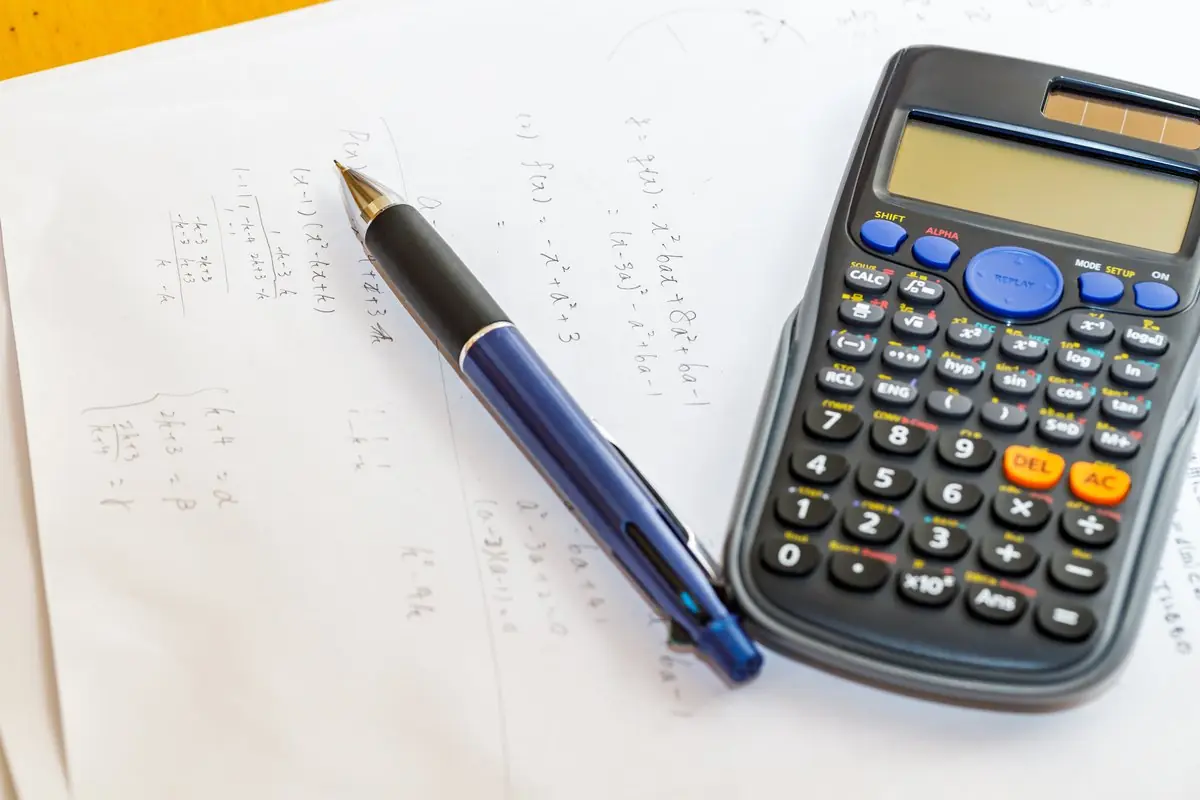
Models such as the Casio fx-83GTX and fx-85GTX are standard scientific calculators. The important thing is that your child uses the same one at home, in class and in the exam.
Exact and decimal answers: the S⇔D key
Modern scientific calculators often give answers as fractions, surds or multiples of pi. That is useful, but questions frequently ask for a decimal. On the fx-83GTX range, the S⇔D key toggles between the two forms, and Casio’s manual explains that pressing SHIFT then = gives a decimal result directly. Other models may label this key differently, so check your own calculator’s manual.
A good habit: when the question asks for an answer “to 2 decimal places” or “to 3 significant figures”, convert to a decimal and write down several digits before rounding. Examiners often give a mark for the unrounded value.
The fraction key and mixed numbers
The fraction template key lets you type a fraction the way it looks on paper. Use it for every fraction rather than the divide key, because it keeps the numerator and denominator together. That matters inside longer calculations, where typing 3 ÷ 4 + 2 ÷ 5 is easy, but 3 ÷ 4 × 2 ÷ 5 is easily mis-entered.
- Mixed numbers: usually SHIFT plus the fraction key gives the mixed number template.
- Improper or mixed answers: the setup menu controls which form the calculator shows. Check it before the exam.
- Simplifying: the calculator automatically simplifies fractions, which is a handy check on hand-simplified answers.
Standard form on a calculator
Standard form numbers like 3.2 × 10⁷ should be entered using the ×10x key (sometimes labelled EXP on older models), not by typing × 10 ^ 7. The dedicated key treats the number as a single value, so dividing by it works correctly. If you type it out with × and ^ without brackets, a division like 6 × 10⁸ ÷ 3 × 10⁴ gives the wrong answer because the calculator works left to right.
When the calculator shows a very large or small answer, it may display it in its own format. Your child should convert it back into proper standard form notation in their written answer.
Powers, roots, brackets and memory
| Function | Use in GCSE | Tip |
|---|---|---|
| x2, x3, x□ | Squares, cubes, any power, including negative and fractional indices | Use brackets around negative numbers: (-3)2 = 9, but -32 gives -9 |
| Square root and nth root | Pythagoras, surds, inverse proportion | The template keeps everything under the root together |
| Brackets | Long expressions, cosine rule, compound interest | Type the whole expression in one go instead of writing intermediate answers |
| Ans | Iteration, multi-step problems | Avoids retyping rounded values |
| Memory (STO, RCL) | Storing a value for later in the question | Keeps full accuracy |
| sin, cos, tan and inverses | Trigonometry | Check the D for degrees on screen |
Iteration with the Ans key
Higher students meet iteration questions such as xn+1 = cube root of (5 – xn). Type the starting value and press =. Then type the formula using Ans in place of xn and press = repeatedly. Each press gives the next value. This turns a long question into a few seconds of work, and avoids rounding errors.
Compound interest and growth in one line
Questions on compound interest, depreciation and population growth are quicker with a power. For £2,500 invested at 3.5% a year for 6 years, type 2500 × 1.0356 in one go rather than working out each year. The answer, about £3,073.14, appears in seconds. Writing the multiplier calculation down first shows the method clearly to the examiner.
Statistics and table modes
Two further modes save time. Table mode generates values of a function, which is useful for plotting graphs (for example, a table of values for y = x2 – 3x + 1 from -2 to 4). Statistics mode can calculate a mean from a frequency table. Both are worth practising before the exam, but your child should still write the working the question asks for: the calculator gives the answer, not the method marks.
Calculator paper tips
- Reset before the exam. A reset clears odd settings someone else may have changed.
- Check degrees mode. Type sin 30. If it is not 0.5, change the mode.
- Write what you type. Writing the calculation down earns method marks if you then press the wrong key.
- Keep full accuracy until the end, using Ans or memory.
- Estimate anyway. A calculator gives a wrong answer confidently if a key slip happens. A quick rough answer catches it.
- Fresh batteries or a solar model with good light, and know where a spare is.
For pacing and general exam habits, see our guide to GCSE exam technique and time management. For a list of the topics that come up most, see our GCSE maths topics guide.
Frequently asked questions
Which calculator is best for GCSE maths?
Any scientific calculator that meets the exam rules will do. Standard scientific models such as the Casio fx-83GTX are designed for this. The best choice is the one your child knows well and has used all year, rather than a new model bought just before the exam.
How do I get a decimal answer instead of a fraction?
On the Casio fx-83GTX range, press the S⇔D key to switch between fraction and decimal, or press SHIFT then = to get a decimal straight away. Other models may use a different key, so look it up in your own manual.
Can you use a graphical calculator in GCSE maths?
Only if it has none of the features JCQ bans, such as symbolic algebra, stored formulae or text, or communication with other devices. Many graphical calculators have at least one of these, so most schools ask students to use a standard scientific calculator. The school’s exams officer can confirm whether a particular model is allowed.
How do you enter standard form on a scientific calculator?
Use the ×10x key, sometimes labelled EXP. For 4.5 × 10⁶, type 4.5, press ×10x, then 6. This keeps the number as one value, so calculations such as division work correctly without extra brackets. Write the final answer in standard form notation yourself.
Make the calculator work for your child
Knowing the calculator well is one of the quickest wins in GCSE maths: a few hours of practice and the calculator papers become faster and more accurate. If your child is losing marks to slips or running out of time, our GCSE maths tuition in Milton Keynes builds these habits alongside the topics themselves. To see where your child stands, book a free assessment.
Next step: Book a free assessment with PrimePlus and we will identify gaps, explain where your child is now and suggest a clear plan. Book your free assessment.